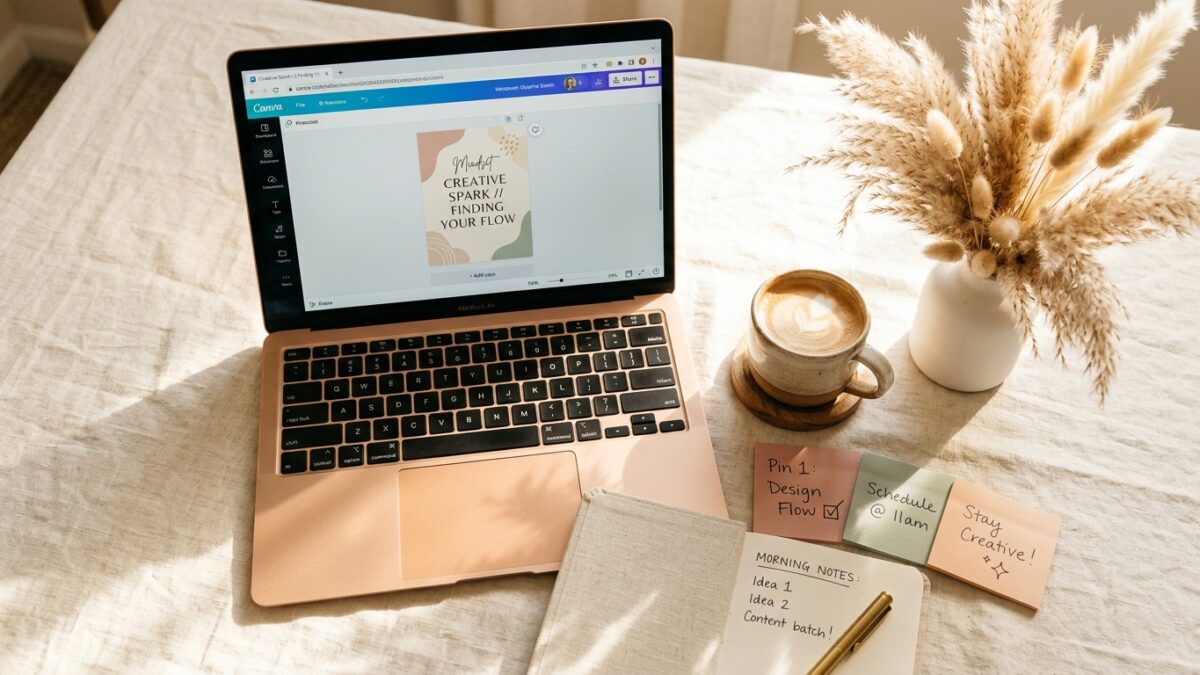
Here’s something nobody really talks about when they’re deep in the Pinterest pin creation spiral: you probably already have everything you need sitting right there in your Canva account. No extra subscriptions. No fancy AI tools you’re not sure how to use. Just Canva — the one you’ve had open in seventeen tabs since Tuesday.
That’s exactly what stopped me mid-scroll one afternoon when I started testing Canva’s built-in AI image generation for Pinterest pins. The results honestly looked like something I’d expect from a paid tool — clean, lifestyle-style images, portrait format, the whole thing. And once I paired that with a completely free Google tool most creators haven’t even heard of yet? The quality got even better.
If you’ve been putting off creating more pins because you think you need a bigger budget or a better toolkit, this one’s for you. We’re covering how to use Canva AI’s Magic Media feature to generate Pinterest-ready pin images, how Google ImageFX works as a free backup option, and how to pull it all together into a consistent pinning workflow — without spending an extra dime.
Just a heads up — some links in this post are affiliate links. If you grab something through my link, I may earn a small commission at no extra cost to you. I only ever share things I genuinely use or love. ✨
📺 More of a watcher than a reader? Totally valid — the full video is here: How I Make Pinterest Pins in Minutes Using Canva AI + Google ImageFX
The Real Reason Most Creators Aren’t Making Enough Pins
Here’s the struggle that honestly doesn’t get talked about enough: you know Pinterest works. You’ve read the stats. You’ve heard the success stories. But sitting down to actually make the pins? That’s where everything slows to a halt.
Either you’re spending way too long on each design, or you’re paying for image generators that feel like another subscription you have to justify. And when pinning consistently is already a whole strategy on its own, the last thing you want is for the creative side to become the bottleneck.
Most people assume that getting beautiful, unique images means spending money — Midjourney, Ideogram, paid Canva add-ons. And while those tools are great, they’re not the only options. Sometimes the best solution is the one that’s already open on your screen.
How Canva AI’s Magic Media Feature Works for Pinterest Pins
Canva’s Magic Media tool generates custom, AI-created images directly inside your pin design — no third-party tool required.
If you have Canva Pro, you already have access to this. And if you’ve never touched it before, you’re about to feel like you unlocked a secret room in a house you’ve lived in for years.
Here’s how the workflow actually goes:
Step 1: Set Up Your Pin Canvas First
Start by opening a Pinterest pin template in Canva — or create a custom canvas at 1,000 × 1,500px, which is the standard Pinterest portrait format. You want portrait, not square. This matters because Pinterest surfaces portrait-format pins more favorably, and images generated in square format won’t fill your pin properly without awkward cropping.
Step 2: Write Your Prompt Before You Open Magic Media
This is the step most tutorials skip, and it’s honestly the most important one. Before you open the image generator, you need a solid prompt ready to paste.
Here’s a method that works really well: use ChatGPT to create a reusable prompt template for your niche. For example, if your content is around kids’ activities or educational products, you might build a template structured like this:
“Photorealistic lifestyle image of [specific scene]. Warm, soft lighting. Pinterest aesthetic. Clean background. No text. Portrait format. Shallow depth of field.”
Then you just swap in the topic — “20 fun craft activities for kids,” “watercolor painting for beginners,” whatever fits. Having that template ready means you’re not staring at a blank prompt field every single time.
Step 3: Generate in Portrait Mode, Photo Style
Open Magic Media inside Canva, paste your prompt, and — this part matters — switch the format to portrait before generating. The default is often square, and generating in square and then trying to resize it for a pin doesn’t give you the same clean result.
For style, the photo or photorealistic option tends to produce the most Pinterest-friendly images — warm, lifestyle-adjacent, not obviously digital or illustrated. You can experiment with other styles, but if the goal is images that look like real lifestyle photography, photo style is your starting point.
Step 4: Use the Grid Element to Fit Your Image
Once you have an image you like, drag it into your canvas. If the dimensions feel slightly off, Canva’s grid elements (find them under Elements → search “grids”) let you drop the image into a perfectly fitted container without manual resizing gymnastics. It’s a small thing, but it saves a surprising amount of fussing around.
Step 5: Fix Any Text Errors With the Grab Text Tool
Sometimes AI-generated images include text — and sometimes that text is slightly off. Canva has a “Grab Text” feature built into the image editor. Select the image, click Edit, and look for Grab Text. It pulls the AI-generated text into editable format so you can correct it or replace it entirely.
And if there’s a stray element you want removed — a watermark, an odd shadow, an extra line — Canva’s Magic Erase tool handles it cleanly. Select the image, click Edit, then Magic Erase, and brush over whatever you want gone.
✨ FRIEND TIP: Before you generate anything, spend 10 minutes in ChatGPT building 5–10 prompt templates for your specific niche. Save them in a Google Doc. Now every time you sit down to create pins, the hardest part is already done — you just paste, generate, and design. That alone can cut your pin creation time in half.
Google ImageFX: The Free AI Image Generator Most Creators Are Sleeping On
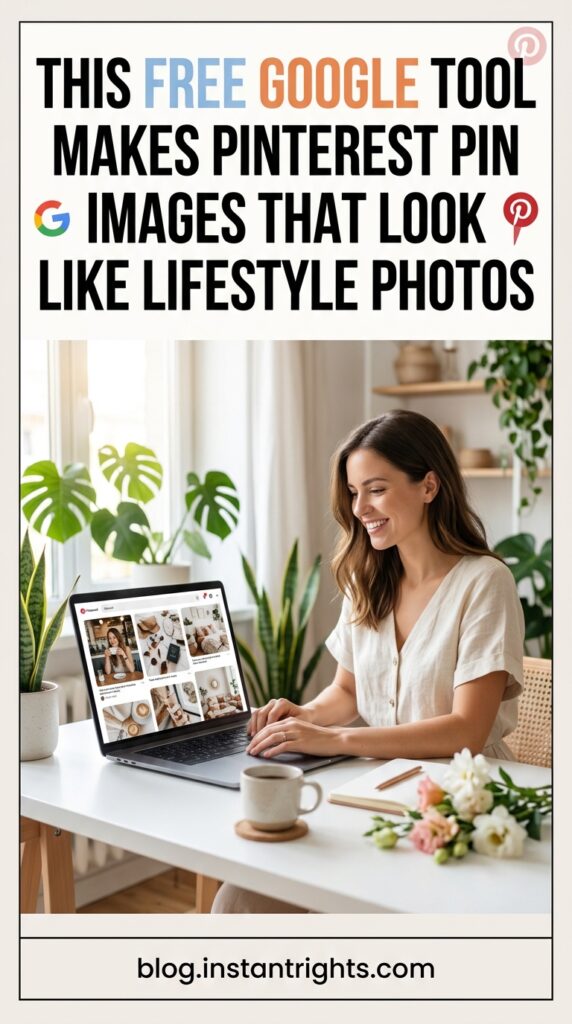
Google ImageFX (found at labs.google) is a completely free AI image generator powered by Imagen 4 — and it produces some of the most realistic, Pinterest-ready images available right now.
Ngl, when I first started playing with this one, I genuinely wasn’t expecting much. “Google” and “free” together usually means decent-but-not-impressive. But the quality here? Actually stunning.
You find it at labs.google — search Google ImageFX and it comes right up. No paid subscription. No credits system (at least as of when this was written). Just an image generator that’s quietly sitting there being excellent.
How to Use ImageFX for Pinterest Pins
The workflow is simple:
- Head to labs.google and open ImageFX
- Paste your prompt (the same templates you built for Canva work perfectly here)
- Switch the aspect ratio to portrait — this is the same principle as Canva, you want that 2:3 format
- Select Realistic or Photography under the style options
- Generate and compare
What makes ImageFX stand out is how cleanly it handles text inside images. Most AI generators still struggle with readable, accurate text rendered within an image — you’ve seen the scrambled fonts, the floating letters, the nonsense words. ImageFX, in testing, handles text with noticeably fewer errors. For pins where you want text baked into the image itself (think quote pins, tip-based pins, or styled headline cards), that matters a lot.
The images also have a quality that doesn’t read as AI-generated at a glance — which is exactly what you want on Pinterest, where visual credibility is everything.
One Small Workaround
Sometimes ImageFX leaves a bit of extra white space at the top of the generated image. Easy fix: download the image and bring it into Canva, where you can reframe it, crop it, or drop it into a grid element just like you would with any other image. Treat ImageFX as your image source and Canva as your layout and finishing tool — they work really well together.
✨ FRIEND TIP: Run the same prompt through both Canva AI and ImageFX and compare results side by side. They often produce noticeably different versions of the same scene. Pick the one that fits best, or use them for different sections of your pin batch. Having two free tools means twice the creative options with zero extra cost.
How to Build a Prompt System That Makes Pinning Consistent
The fastest way to create pins consistently isn’t a better tool — it’s a reusable prompt library that removes the blank-page problem entirely.
This is where the whole workflow clicks together. Once you have both Canva AI and ImageFX available, the real bottleneck isn’t image quality — it’s not knowing what to generate. That’s where a prompt template system changes everything.
Here’s how to build one:
Build Your Prompt Templates in ChatGPT
Open ChatGPT and ask it to help you create 10–15 image generation prompts for your specific content niche. Give it context: what your brand aesthetic looks like, who your audience is, what types of pins perform best for you.
For a lifestyle or digital products niche, prompts might look like:
- “Photorealistic flat lay of a digital planner open on a cream linen surface, soft morning light, Pinterest aesthetic, no text in image, portrait format”
- “Lifestyle photo of a woman working from a cozy home office, warm wood tones, plants in background, shallow depth of field, soft natural light”
- “Top-down view of an open notebook with handwritten notes, a latte, and dried flowers on a white wood desk, warm and feminine aesthetic”
Save these in a simple Google Doc, organized by category. Now your pin creation session starts with a prompt, not a blank canvas.
Batch Your Pin Creation by Topic
Pick one topic, generate 5–8 image variations across both tools, then add your text overlays in Canva. You’ve now got a week’s worth of pins in a single focused session. That’s a genuinely different relationship with consistency than trying to create one pin at a time.
✨ FRIEND TIP: When you find a prompt that generates a beautiful image, save it with a note about which tool you used and what style settings you chose. Your best prompts are assets — they’re worth keeping organized just like any other content resource.
What This Actually Looks Like When It’s Working
Imagine sitting down on a Sunday afternoon and batching 20 Pinterest pins in about two hours — without a paid image generator, without a designer, and without spending that entire time staring at a blank screen wondering what to make.
That’s what a working prompt system paired with Canva AI and ImageFX actually looks like in practice. Creators in this space are driving thousands of clicks to their blogs and shops from Pinterest every month with exactly this kind of workflow — not because they have a bigger budget, but because they found a repeatable system and stuck with it.
The pins that perform on Pinterest aren’t always the most elaborate — they’re the ones that look beautiful, match the aesthetic of their audience, and speak directly to something that audience is searching for. And with portrait-format, photorealistic images you can generate in minutes? That standard is genuinely within reach.
tbh, the biggest thing standing between most creators and consistent Pinterest traffic isn’t the tools — it’s not having a system that makes showing up feel easy. Once you have that, the results tend to follow.
If you want a tool specifically built for creating Pinterest pins and product mockups for digital sellers, PinCraft AI is worth checking out when you’re ready to take the design side even further — it’s built specifically for this niche and makes the whole mockup and pin creation process feel genuinely effortless.
Frequently Asked Questions
Q: Do I need Canva Pro to use the AI image generation feature? A: Yes — Canva’s Magic Media AI image generator is a Canva Pro feature. If you’re on the free plan, you’ll have limited or no access to it. That said, Google ImageFX is completely free with no subscription required, so you have a solid option either way.
Q: Can I use these AI-generated images on Pinterest without getting flagged? A: Yes. AI-generated images aren’t against Pinterest’s guidelines. The key thing is that they’re unique — not images pulled from stock sites or other pages on the internet. Because you’re generating these yourself with custom prompts, each image is original to your account. That’s exactly what you want.
Q: Is Google ImageFX really free? What’s the catch? A: As of now, ImageFX through labs.google is genuinely free to use — no subscription, no credit system. Google does require a Google account to access it. It’s a research/experimental product under Google Labs, so features and availability could change, but right now it’s one of the better free image tools available.
Q: What’s the right image size for Pinterest pins? A: The standard Pinterest pin format is 1,000 × 1,500px — that’s a 2:3 aspect ratio, portrait orientation. When generating images in either Canva AI or ImageFX, always select portrait mode before generating so the proportions are right from the start.
Q: How long does it take to actually see results from Pinterest with this kind of workflow? A: Pinterest is a long-game platform, and most creators start seeing meaningful traffic growth between three and six months of consistent pinning. The good news is that pins have a much longer shelf life than social media posts — a pin you create today can still be driving traffic a year from now. The goal is consistency over time, not overnight results.
You’re More Ready Than You Think
If you made it this far, you now know something a lot of creators are still paying to figure out: you can create beautiful, unique, Pinterest-ready images without a single extra subscription, using tools that are either already in your Canva account or completely free through Google.
The three things worth taking away from this:
- Canva’s Magic Media generates custom AI images in portrait format right inside your design tool — no third-party generator needed
- Google ImageFX (labs.google) is a free, Imagen 4-powered alternative that produces incredibly realistic results with clean text rendering
- A reusable prompt library built in ChatGPT removes the creative blank-page problem and makes batching pins actually doable
You don’t need a perfect setup to start. You need a prompt, a canvas, and about thirty minutes to try it for yourself.
And whenever you’re ready to take your Pinterest pin and mockup creation even further, PinCraft AI is the tool I’d point you toward — it’s designed specifically for digital product sellers and Pinterest creators, and it makes the whole visual content side feel a lot less like a chore.
Start with what you have. Build from there. Pinterest rewards consistency more than perfection. ✨
Try PinCraft AI Free Today
Design beautiful Pinterest pins in seconds with AI. Start your free trial — no credit card needed.

Helping creators use AI tools and Pinterest to build digital product income from home.